> ## Documentation Index
> Fetch the complete documentation index at: https://docs.liv.tv/llms.txt
> Use this file to discover all available pages before exploring further.
# Installation
> How to install and configure the LIV Camera Kit (LCK) SDK in Unreal Engine projects, including plugin setup, module dependencies, and platform-specific configuration for Windows, Android, and Linux.
The LCK SDK for Unreal Engine is distributed as a set of plugins. This guide covers installing the core and optional plugins, configuring module dependencies, setting up platform-specific requirements, and verifying everything works.
## Download LCK from the Developer Dashboard
1. Go to the [LIV Developer Dashboard](https://dashboard.liv.tv/dev/login?welcome=false).
2. Create your organization.
3. Create your game.
4. Agree to the LCK License Agreement, Privacy Policy, and binding agreement to generate your app-specific SDK.
5. Download the SDK package and save the **Tracking ID** provided.
Each game requires its own SDK. If you create a new game entry, you will need to download a new SDK.
## Plugin Installation
### From Source
1. Unzip the LCKGame project
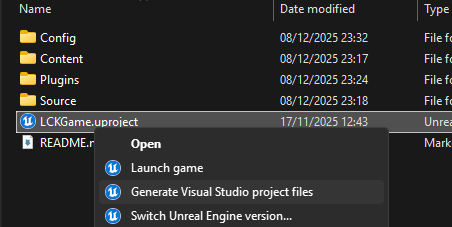
 2. Generate Visual Studio project files
You may need to select 'Show More Options' to see the below options.
2. Generate Visual Studio project files
You may need to select 'Show More Options' to see the below options.
 3. Open the .sln generated and build the project.
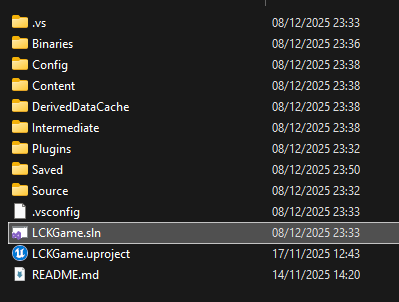 You can find the LCK plugins inside the `/Plugins` folder:
**Core:**
* LCK (required)
* LCKUI
* LCKTablet
* LCKUnrealAudio
**Platform-specific:**
* LCKOboe (Android microphone)
**Audio Middleware (disabled by default):**
* LCKFMOD (requires FMODStudio)
* LCKWwise (requires Wwise)
* LCKVivox (requires VivoxCore)
### Required Plugins
**Required** - Core recording functionality including encoding and capture
**Required** - Audio source interface and mixing
### Optional Plugins
* **LCKUI** - 3D UI component library
* **LCKTablet** - Complete virtual tablet interface
* **LCKUnrealAudio** - Unreal Engine native audio
* **LCKOboe** - Android low-latency microphone
These plugins require you to download and install third-party plugins:
* **LCKFMOD** - FMOD Studio integration (requires [FMODStudio plugin](https://www.fmod.com/download))
* **LCKWwise** - Audiokinetic Wwise integration (requires [Wwise plugin](https://www.audiokinetic.com/download/))
* **LCKVivox** - Vivox voice chat capture (requires VivoxCore plugin)
### Enabling Audio Middleware Plugins
**LCKFMOD**, **LCKWwise**, and **LCKVivox** plugins are **disabled by default** and will NOT compile without their respective third-party plugins installed. Only enable them after installing the required plugins.
* **FMOD:** Download [FMODStudio plugin](https://www.fmod.com/download) for Unreal Engine
* **Wwise:** Download [Wwise plugin](https://www.audiokinetic.com/download/) for Unreal Engine
* **Vivox:** Download [VivoxCore plugin](https://developer.vivox.com/) for Unreal Engine
Copy the downloaded plugin to your project's `Plugins/` folder.
Edit `LCKGame.uproject` and set the plugins to `"Enabled": true`:
**For FMOD:**
```json theme={null}
{ "Name": "FMODStudio", "Enabled": true },
{ "Name": "LCKFMOD", "Enabled": true }
```
**For Wwise:**
```json theme={null}
{ "Name": "Wwise", "Enabled": true },
{ "Name": "WwiseSoundEngine", "Enabled": true },
{ "Name": "LCKWwise", "Enabled": true }
```
**For Vivox:**
```json theme={null}
{ "Name": "VivoxCore", "Enabled": true },
{ "Name": "LCKVivox", "Enabled": true }
```
## Module Dependencies
Add the required modules to your `.Build.cs` file:
```csharp Minimal Setup theme={null}
PublicDependencyModuleNames.AddRange(new string[] {
"LCKCore",
"LCKAudio"
});
```
```csharp Full Setup theme={null}
PublicDependencyModuleNames.AddRange(new string[] {
"LCKCore",
"LCKAudio",
"LCKUI",
"LCKTablet"
});
// Audio plugins (add as needed)
PrivateDependencyModuleNames.AddRange(new string[] {
"LCKUnrealAudio",
"LCKFMOD", // If using FMOD
"LCKWwise", // If using Wwise
"LCKVivox" // If using Vivox
});
```
## Platform Configuration
### Windows Setup
No additional configuration required. The SDK uses Windows Media Foundation for encoding.
**Requirements:**
* Windows 10 or later
* DirectX 11 compatible GPU
* AVCodecsCore plugin enabled
```ini theme={null}
; DefaultEngine.ini - No changes needed
```
### Android Setup
1. **Enable Vulkan rendering** in your project settings
2. **Configure AndroidEngine.ini:**
```ini theme={null}
[/Script/AndroidRuntimeSettings.AndroidRuntimeSettings]
bEnableVulkanSM5Support=True
```
3. **Add required permissions** to `AndroidManifest.xml`:
```xml theme={null}
```
4. **Enable LCKOboe plugin** for low-latency microphone support
Android **requires Vulkan** for video encoding. OpenGL ES is **not supported** — the encoder uses Vulkan + EGL texture interop for hardware-accelerated H.264 encoding.
### Linux Setup
Video encoding is not currently supported on Linux. Audio capture via Unreal Audio is available.
## Project Settings
Navigate to **Project Settings > Plugins > LCK SDK**:
| Setting | Type | Description |
| ------------- | ------ | ------------------------------------------- |
| `Tracking ID` | String | UUID v4 identifier for analytics (required) |
| `Game Name` | String | Your application's display name (required) |
| `Profile_SD` | Struct | 1280x720 quality preset |
| `Profile_HD` | Struct | 1920x1080 quality preset |
| `Profile_2K` | Struct | 2560x1440 quality preset |
| `Profile_4K` | Struct | 3840x2160 quality preset |
### Quality Profile Settings
Each profile contains:
```cpp theme={null}
USTRUCT(BlueprintType)
struct FLCKRecordingProfileSettings
{
int32 Width;
int32 Height;
int32 Framerate;
int32 VideoBitrate;
int32 AudioBitrate;
int32 Samplerate;
};
```
Start with SD (1280x720) profiles for VR standalone devices like Meta Quest to ensure smooth performance.
## Verification
After installation, verify the SDK is working:
```cpp theme={null}
#include "LCKSubsystem.h"
#include "Features/IModularFeatures.h"
#include "ILCKAudioSource.h"
void AMyActor::VerifyLCKSetup()
{
// Check subsystem
ULCKSubsystem* Subsystem = GetWorld()->GetSubsystem();
if (Subsystem && Subsystem->GetService())
{
UE_LOG(LogTemp, Log, TEXT("LCK Service initialized"));
}
// Check audio sources
TArray AudioSources;
IModularFeatures::Get().GetModularFeatureImplementations(
ILCKAudioSource::GetModularFeatureName(),
AudioSources
);
UE_LOG(LogTemp, Log, TEXT("Found %d audio sources"), AudioSources.Num());
}
```
## Troubleshooting
* Verify plugin is in the correct `Plugins/` directory
* Regenerate project files (right-click .uproject > Generate Project Files)
* Check Output Log for loading errors
* Ensure the plugin is enabled in `.uproject` file
* Verify module name spelling matches exactly
* Check for circular dependencies
* Verify Vulkan is enabled
* Check NDK version compatibility
* Ensure permissions are added to manifest
You can find the LCK plugins inside the `/Plugins` folder:
**Core:**
* LCK (required)
* LCKUI
* LCKTablet
* LCKUnrealAudio
**Platform-specific:**
* LCKOboe (Android microphone)
**Audio Middleware (disabled by default):**
* LCKFMOD (requires FMODStudio)
* LCKWwise (requires Wwise)
* LCKVivox (requires VivoxCore)
### Required Plugins
**Required** - Core recording functionality including encoding and capture
**Required** - Audio source interface and mixing
### Optional Plugins
* **LCKUI** - 3D UI component library
* **LCKTablet** - Complete virtual tablet interface
* **LCKUnrealAudio** - Unreal Engine native audio
* **LCKOboe** - Android low-latency microphone
These plugins require you to download and install third-party plugins:
* **LCKFMOD** - FMOD Studio integration (requires [FMODStudio plugin](https://www.fmod.com/download))
* **LCKWwise** - Audiokinetic Wwise integration (requires [Wwise plugin](https://www.audiokinetic.com/download/))
* **LCKVivox** - Vivox voice chat capture (requires VivoxCore plugin)
### Enabling Audio Middleware Plugins
**LCKFMOD**, **LCKWwise**, and **LCKVivox** plugins are **disabled by default** and will NOT compile without their respective third-party plugins installed. Only enable them after installing the required plugins.
* **FMOD:** Download [FMODStudio plugin](https://www.fmod.com/download) for Unreal Engine
* **Wwise:** Download [Wwise plugin](https://www.audiokinetic.com/download/) for Unreal Engine
* **Vivox:** Download [VivoxCore plugin](https://developer.vivox.com/) for Unreal Engine
Copy the downloaded plugin to your project's `Plugins/` folder.
Edit `LCKGame.uproject` and set the plugins to `"Enabled": true`:
**For FMOD:**
```json theme={null}
{ "Name": "FMODStudio", "Enabled": true },
{ "Name": "LCKFMOD", "Enabled": true }
```
**For Wwise:**
```json theme={null}
{ "Name": "Wwise", "Enabled": true },
{ "Name": "WwiseSoundEngine", "Enabled": true },
{ "Name": "LCKWwise", "Enabled": true }
```
**For Vivox:**
```json theme={null}
{ "Name": "VivoxCore", "Enabled": true },
{ "Name": "LCKVivox", "Enabled": true }
```
## Module Dependencies
Add the required modules to your `.Build.cs` file:
```csharp Minimal Setup theme={null}
PublicDependencyModuleNames.AddRange(new string[] {
"LCKCore",
"LCKAudio"
});
```
```csharp Full Setup theme={null}
PublicDependencyModuleNames.AddRange(new string[] {
"LCKCore",
"LCKAudio",
"LCKUI",
"LCKTablet"
});
// Audio plugins (add as needed)
PrivateDependencyModuleNames.AddRange(new string[] {
"LCKUnrealAudio",
"LCKFMOD", // If using FMOD
"LCKWwise", // If using Wwise
"LCKVivox" // If using Vivox
});
```
## Platform Configuration
### Windows Setup
No additional configuration required. The SDK uses Windows Media Foundation for encoding.
**Requirements:**
* Windows 10 or later
* DirectX 11 compatible GPU
* AVCodecsCore plugin enabled
```ini theme={null}
; DefaultEngine.ini - No changes needed
```
### Android Setup
1. **Enable Vulkan rendering** in your project settings
2. **Configure AndroidEngine.ini:**
```ini theme={null}
[/Script/AndroidRuntimeSettings.AndroidRuntimeSettings]
bEnableVulkanSM5Support=True
```
3. **Add required permissions** to `AndroidManifest.xml`:
```xml theme={null}
```
4. **Enable LCKOboe plugin** for low-latency microphone support
Android **requires Vulkan** for video encoding. OpenGL ES is **not supported** — the encoder uses Vulkan + EGL texture interop for hardware-accelerated H.264 encoding.
### Linux Setup
Video encoding is not currently supported on Linux. Audio capture via Unreal Audio is available.
## Project Settings
Navigate to **Project Settings > Plugins > LCK SDK**:
| Setting | Type | Description |
| ------------- | ------ | ------------------------------------------- |
| `Tracking ID` | String | UUID v4 identifier for analytics (required) |
| `Game Name` | String | Your application's display name (required) |
| `Profile_SD` | Struct | 1280x720 quality preset |
| `Profile_HD` | Struct | 1920x1080 quality preset |
| `Profile_2K` | Struct | 2560x1440 quality preset |
| `Profile_4K` | Struct | 3840x2160 quality preset |
### Quality Profile Settings
Each profile contains:
```cpp theme={null}
USTRUCT(BlueprintType)
struct FLCKRecordingProfileSettings
{
int32 Width;
int32 Height;
int32 Framerate;
int32 VideoBitrate;
int32 AudioBitrate;
int32 Samplerate;
};
```
Start with SD (1280x720) profiles for VR standalone devices like Meta Quest to ensure smooth performance.
## Verification
After installation, verify the SDK is working:
```cpp theme={null}
#include "LCKSubsystem.h"
#include "Features/IModularFeatures.h"
#include "ILCKAudioSource.h"
void AMyActor::VerifyLCKSetup()
{
// Check subsystem
ULCKSubsystem* Subsystem = GetWorld()->GetSubsystem();
if (Subsystem && Subsystem->GetService())
{
UE_LOG(LogTemp, Log, TEXT("LCK Service initialized"));
}
// Check audio sources
TArray AudioSources;
IModularFeatures::Get().GetModularFeatureImplementations(
ILCKAudioSource::GetModularFeatureName(),
AudioSources
);
UE_LOG(LogTemp, Log, TEXT("Found %d audio sources"), AudioSources.Num());
}
```
## Troubleshooting
* Verify plugin is in the correct `Plugins/` directory
* Regenerate project files (right-click .uproject > Generate Project Files)
* Check Output Log for loading errors
* Ensure the plugin is enabled in `.uproject` file
* Verify module name spelling matches exactly
* Check for circular dependencies
* Verify Vulkan is enabled
* Check NDK version compatibility
* Ensure permissions are added to manifest