> ## Documentation Index
> Fetch the complete documentation index at: https://docs.liv.tv/llms.txt
> Use this file to discover all available pages before exploring further.
# Themes, Materials and Sounds
> How to customize the LIV Camera Kit (LCK) tablet UI in Unreal Engine, including material theming, button sounds, haptic feedback, icon replacement, and theme presets for VR.
LCK UI components are fully customizable to match your game's art style and feel.
## Overview
The LCK UI system supports customization of:
* **Materials** — Button colors, textures, and visual effects
* **Sounds** — Button press/release audio feedback
* **Haptics** — Controller vibration feedback
***
## Material Customization
### Button Materials
LCK buttons use material instances for visual states:
| State | Description |
| -------- | ------------------------ |
| Default | Normal idle appearance |
| Hovered | Pointer/hand over button |
| Pressed | Button being pressed |
| Disabled | Button inactive |
### Customizing Materials
Find the default materials in:
```
Plugins/LCKUI/Content/Materials/
├── M_LCKButton_Base
├── MI_LCKButton_Default
├── MI_LCKButton_Recording
└── MI_LCKButton_Disabled
```
Create new Material Instances based on `M_LCKButton_Base`:
1. Right-click `M_LCKButton_Base`
2. Select **Create Material Instance**
3. Name it (e.g., `MI_MyGame_Button`)
Adjust material parameters:
| Parameter | Type | Description |
| ----------------- | ----- | -------------------- |
| BaseColor | Color | Primary button color |
| EmissiveColor | Color | Glow color |
| EmissiveIntensity | Float | Glow brightness |
| Opacity | Float | Transparency |
Assign your custom material to LCK button components:
```cpp theme={null}
ULCKButton* Button = FindComponentByClass();
Button->SetMaterial(MyCustomMaterial);
```
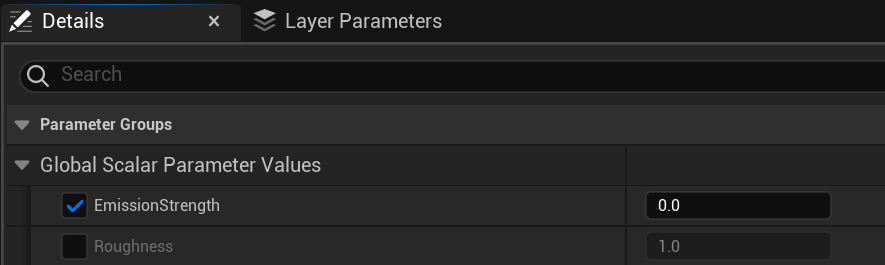
### Emission & Lighting
Depending on how you use real-time lighting in your game you might want to tweak emission strength on the UI materials.
 ### UI Texture Assets
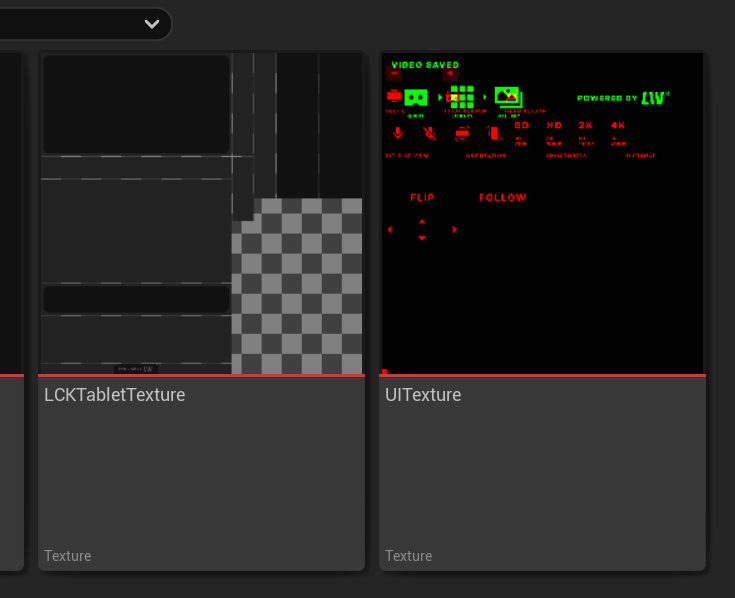
UI visuals are defined by the **UITexture** asset. Update it to change the UI look. Update **LCKTabletTexture** asset to change how the tablet looks.
### UI Texture Assets
UI visuals are defined by the **UITexture** asset. Update it to change the UI look. Update **LCKTabletTexture** asset to change how the tablet looks.
 ### Material Parameter Updates
LCK automatically updates material parameters based on state:
```cpp theme={null}
// How LCK updates button materials internally
void ULCKButton::UpdateMaterialState(ELCKButtonState NewState)
{
if (DynamicMaterial)
{
switch (NewState)
{
case ELCKButtonState::Default:
DynamicMaterial->SetVectorParameterValue(TEXT("Color"), DefaultColor);
break;
case ELCKButtonState::Hovered:
DynamicMaterial->SetVectorParameterValue(TEXT("Color"), HoverColor);
break;
case ELCKButtonState::Pressed:
DynamicMaterial->SetVectorParameterValue(TEXT("Color"), PressedColor);
break;
}
}
}
```
***
## Sound Feedback
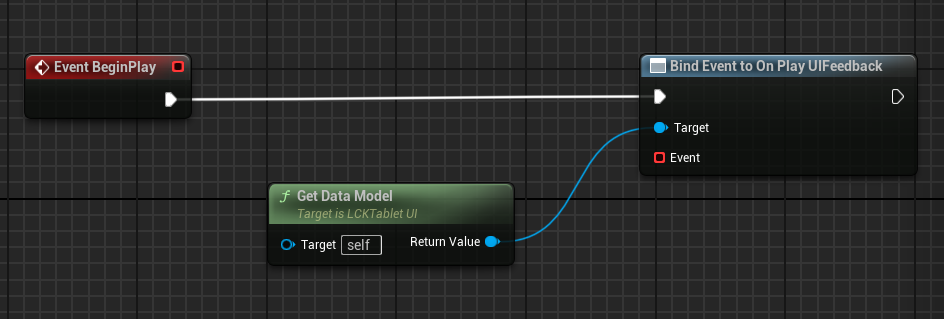
**TabletDataModel** has a broadcast for a UI element being pressed. You can subscribe your own implementation to it.
### Material Parameter Updates
LCK automatically updates material parameters based on state:
```cpp theme={null}
// How LCK updates button materials internally
void ULCKButton::UpdateMaterialState(ELCKButtonState NewState)
{
if (DynamicMaterial)
{
switch (NewState)
{
case ELCKButtonState::Default:
DynamicMaterial->SetVectorParameterValue(TEXT("Color"), DefaultColor);
break;
case ELCKButtonState::Hovered:
DynamicMaterial->SetVectorParameterValue(TEXT("Color"), HoverColor);
break;
case ELCKButtonState::Pressed:
DynamicMaterial->SetVectorParameterValue(TEXT("Color"), PressedColor);
break;
}
}
}
```
***
## Sound Feedback
**TabletDataModel** has a broadcast for a UI element being pressed. You can subscribe your own implementation to it.
 ### Configuring Button Sounds
LCK buttons can play sounds on interaction:
```cpp theme={null}
UPROPERTY(EditAnywhere, Category = "Audio")
USoundBase* PressSound;
UPROPERTY(EditAnywhere, Category = "Audio")
USoundBase* ReleaseSound;
UPROPERTY(EditAnywhere, Category = "Audio")
USoundBase* HoverSound;
```
### Setting Up Sounds
1. Select the LCK button component
2. In Details panel, find **Audio** section
3. Assign your sound assets to:
* Press Sound
* Release Sound
* Hover Sound
```cpp theme={null}
void UMyComponent::SetupButtonSounds()
{
ULCKButton* Button = FindComponentByClass();
// Load sound assets
USoundBase* PressSound = LoadObject(
nullptr,
TEXT("/Game/Audio/UI/ButtonPress")
);
Button->SetPressSound(PressSound);
Button->SetReleaseSound(ReleaseSound);
Button->SetHoverSound(HoverSound);
}
```
### Sound Volume
Adjust UI sound volume relative to game audio:
```cpp theme={null}
Button->SetSoundVolume(0.5f); // 50% volume
```
***
## Haptic Feedback
### Controller Vibration
LCK supports haptic feedback for VR controllers:
```cpp theme={null}
UPROPERTY(EditAnywhere, Category = "Haptics")
float PressHapticIntensity = 0.5f;
UPROPERTY(EditAnywhere, Category = "Haptics")
float PressHapticDuration = 0.1f;
```
### Configuring Haptics
```cpp theme={null}
void UMyComponent::SetupHaptics()
{
ULCKButton* Button = FindComponentByClass();
// Configure press haptics
Button->SetPressHaptics(
0.7f, // Intensity (0-1)
0.05f // Duration in seconds
);
// Configure hover haptics
Button->SetHoverHaptics(
0.2f, // Lighter intensity for hover
0.02f
);
}
```
### Platform-Specific Haptics
Quest controllers support:
* Amplitude modulation
* Frequency control
* Duration timing
```cpp theme={null}
// Quest-specific haptic pattern
FHapticFeedbackDetails_Curve HapticPattern;
HapticPattern.Frequency = 0.5f;
HapticPattern.Amplitude = 0.8f;
APlayerController* PC = GetWorld()->GetFirstPlayerController();
PC->PlayHapticEffect(HapticPattern, EControllerHand::Right);
```
SteamVR controllers support:
* Simple buzz patterns
* Duration control
```cpp theme={null}
// SteamVR haptic pulse
APlayerController* PC = GetWorld()->GetFirstPlayerController();
PC->PlayHapticEffect(
nullptr, // No curve, use simple pulse
EControllerHand::Right,
0.5f, // Intensity
0.1f // Duration
);
```
***
## Widget Styling
### Text Customization
```cpp theme={null}
UPROPERTY(EditAnywhere, Category = "Text")
FSlateFontInfo LabelFont;
UPROPERTY(EditAnywhere, Category = "Text")
FLinearColor LabelColor;
```
### Icon Customization
Replace button icons with your own:
```cpp theme={null}
UPROPERTY(EditAnywhere, Category = "Icons")
UTexture2D* RecordIcon;
UPROPERTY(EditAnywhere, Category = "Icons")
UTexture2D* StopIcon;
UPROPERTY(EditAnywhere, Category = "Icons")
UTexture2D* CameraIcon;
```
***
## Theme Presets
Create reusable theme configurations:
```cpp theme={null}
USTRUCT(BlueprintType)
struct FLCKUITheme
{
GENERATED_BODY()
UPROPERTY(EditAnywhere)
FLinearColor PrimaryColor;
UPROPERTY(EditAnywhere)
FLinearColor SecondaryColor;
UPROPERTY(EditAnywhere)
FLinearColor AccentColor;
UPROPERTY(EditAnywhere)
USoundBase* ButtonPressSound;
UPROPERTY(EditAnywhere)
float HapticIntensity;
};
// Apply theme to all LCK UI
void ApplyTheme(const FLCKUITheme& Theme)
{
TArray Buttons;
GetOwner()->GetComponentsByClass(Buttons);
for (ULCKButton* Button : Buttons)
{
Button->SetDefaultColor(Theme.PrimaryColor);
Button->SetPressedColor(Theme.AccentColor);
Button->SetPressSound(Theme.ButtonPressSound);
Button->SetPressHapticIntensity(Theme.HapticIntensity);
}
}
```
***
## Best Practices
Customize the tablet to feel native to your game world:
* Use your game's color palette
* Match button styles to existing UI
* Consider environmental theming (sci-fi, fantasy, etc.)
Ensure feedback is consistent across all LCK interactions:
* Same sound volume for all buttons
* Similar haptic intensity
* Consistent visual transitions
Always test customizations on actual VR hardware:
* Verify materials look correct in VR
* Test haptic intensity
* Confirm sound spatialization
Consider accessibility when customizing:
* High contrast color options
* Adjustable haptic intensity
* Optional sound feedback toggle
***
## See Also
Button component reference
Recording state visualization
### Configuring Button Sounds
LCK buttons can play sounds on interaction:
```cpp theme={null}
UPROPERTY(EditAnywhere, Category = "Audio")
USoundBase* PressSound;
UPROPERTY(EditAnywhere, Category = "Audio")
USoundBase* ReleaseSound;
UPROPERTY(EditAnywhere, Category = "Audio")
USoundBase* HoverSound;
```
### Setting Up Sounds
1. Select the LCK button component
2. In Details panel, find **Audio** section
3. Assign your sound assets to:
* Press Sound
* Release Sound
* Hover Sound
```cpp theme={null}
void UMyComponent::SetupButtonSounds()
{
ULCKButton* Button = FindComponentByClass();
// Load sound assets
USoundBase* PressSound = LoadObject(
nullptr,
TEXT("/Game/Audio/UI/ButtonPress")
);
Button->SetPressSound(PressSound);
Button->SetReleaseSound(ReleaseSound);
Button->SetHoverSound(HoverSound);
}
```
### Sound Volume
Adjust UI sound volume relative to game audio:
```cpp theme={null}
Button->SetSoundVolume(0.5f); // 50% volume
```
***
## Haptic Feedback
### Controller Vibration
LCK supports haptic feedback for VR controllers:
```cpp theme={null}
UPROPERTY(EditAnywhere, Category = "Haptics")
float PressHapticIntensity = 0.5f;
UPROPERTY(EditAnywhere, Category = "Haptics")
float PressHapticDuration = 0.1f;
```
### Configuring Haptics
```cpp theme={null}
void UMyComponent::SetupHaptics()
{
ULCKButton* Button = FindComponentByClass();
// Configure press haptics
Button->SetPressHaptics(
0.7f, // Intensity (0-1)
0.05f // Duration in seconds
);
// Configure hover haptics
Button->SetHoverHaptics(
0.2f, // Lighter intensity for hover
0.02f
);
}
```
### Platform-Specific Haptics
Quest controllers support:
* Amplitude modulation
* Frequency control
* Duration timing
```cpp theme={null}
// Quest-specific haptic pattern
FHapticFeedbackDetails_Curve HapticPattern;
HapticPattern.Frequency = 0.5f;
HapticPattern.Amplitude = 0.8f;
APlayerController* PC = GetWorld()->GetFirstPlayerController();
PC->PlayHapticEffect(HapticPattern, EControllerHand::Right);
```
SteamVR controllers support:
* Simple buzz patterns
* Duration control
```cpp theme={null}
// SteamVR haptic pulse
APlayerController* PC = GetWorld()->GetFirstPlayerController();
PC->PlayHapticEffect(
nullptr, // No curve, use simple pulse
EControllerHand::Right,
0.5f, // Intensity
0.1f // Duration
);
```
***
## Widget Styling
### Text Customization
```cpp theme={null}
UPROPERTY(EditAnywhere, Category = "Text")
FSlateFontInfo LabelFont;
UPROPERTY(EditAnywhere, Category = "Text")
FLinearColor LabelColor;
```
### Icon Customization
Replace button icons with your own:
```cpp theme={null}
UPROPERTY(EditAnywhere, Category = "Icons")
UTexture2D* RecordIcon;
UPROPERTY(EditAnywhere, Category = "Icons")
UTexture2D* StopIcon;
UPROPERTY(EditAnywhere, Category = "Icons")
UTexture2D* CameraIcon;
```
***
## Theme Presets
Create reusable theme configurations:
```cpp theme={null}
USTRUCT(BlueprintType)
struct FLCKUITheme
{
GENERATED_BODY()
UPROPERTY(EditAnywhere)
FLinearColor PrimaryColor;
UPROPERTY(EditAnywhere)
FLinearColor SecondaryColor;
UPROPERTY(EditAnywhere)
FLinearColor AccentColor;
UPROPERTY(EditAnywhere)
USoundBase* ButtonPressSound;
UPROPERTY(EditAnywhere)
float HapticIntensity;
};
// Apply theme to all LCK UI
void ApplyTheme(const FLCKUITheme& Theme)
{
TArray Buttons;
GetOwner()->GetComponentsByClass(Buttons);
for (ULCKButton* Button : Buttons)
{
Button->SetDefaultColor(Theme.PrimaryColor);
Button->SetPressedColor(Theme.AccentColor);
Button->SetPressSound(Theme.ButtonPressSound);
Button->SetPressHapticIntensity(Theme.HapticIntensity);
}
}
```
***
## Best Practices
Customize the tablet to feel native to your game world:
* Use your game's color palette
* Match button styles to existing UI
* Consider environmental theming (sci-fi, fantasy, etc.)
Ensure feedback is consistent across all LCK interactions:
* Same sound volume for all buttons
* Similar haptic intensity
* Consistent visual transitions
Always test customizations on actual VR hardware:
* Verify materials look correct in VR
* Test haptic intensity
* Confirm sound spatialization
Consider accessibility when customizing:
* High contrast color options
* Adjustable haptic intensity
* Optional sound feedback toggle
***
## See Also
Button component reference
Recording state visualization