

Prerequisites
Before proceeding with installation, confirm the following requirements:Unreal Engine Versions
- Supported Versions:
- Unreal Engine 4.26 to 5.4 for Green Screen and Immersive MR features.
- Unreal Engine 5.4+ (Meta Fork required) for Meta Presence Platform features.
DirectX
- Required Version: DirectX 11.
Visual Studio
- Supported Versions:
- 2019 or 2022 (Required for UE5) for building the project.
How to Get the LIV SDK
The LIV SDK plugin can be obtained from the official LIV website:Installation Process
Follow these steps to install the LIV plugin in your Unreal Engine project:Step 1: Extract the Plugin Files
- After downloading the SDK, extract the contents of the ZIP file.
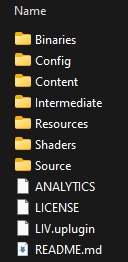
- Ensure the extracted folder contains the following:
LIV.uplugin- Subfolders:
Source,Content, etc.
Step 2: Place the Plugin in Your Project
- Navigate to the root directory of your Unreal Engine project.
-
Create a folder named
Plugins(if it does not already exist). -
Copy the LIV plugin folder into the
Pluginsdirectory:[YourProjectRoot]/Plugins/LIV
Step 3: Enable C++ Support
If your project does not already support C++:- Open Unreal Engine
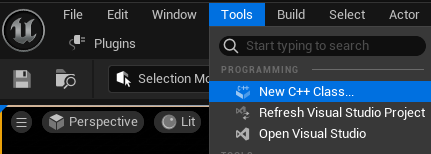
- Navigate to Tools > New C++ Class.
- Create an empty class to enable the required C++ infrastructure for your project.
Step 4: Generate Visual Studio Project Files
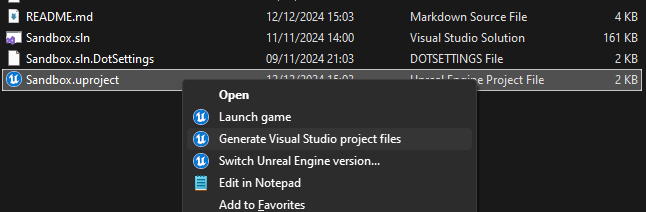
- Right-click on the project’s
.uprojectfile. - Select “Generate Visual Studio project files”.
Step 5: Build the Project
There are two ways to build the project: using Visual Studio or the Command Line.Option 1: Build with Visual Studio
-
Open the
.slnfile in Visual Studio. -
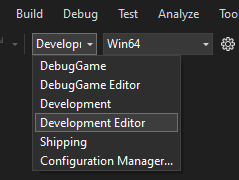
Configure the solution:
- Solution Configuration:
Development Editor - Solution Platform:
Win64
- Solution Configuration:
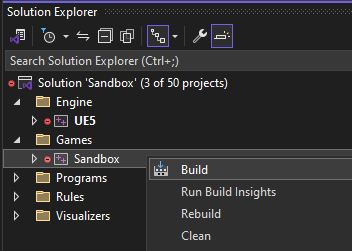
- In the Solution Explorer, right-click on the project target (ex: Sandbox) and select Build.
Option 2: Build Using Command Line
- Open a terminal in admin mode.
- Use the following command:
-
Unreal Engine built from Source :
& "[UnrealEnginePath]\Engine\Build\BatchFiles\Build.bat" -Target="[ProjectTarget] Win64 Development" -Project="[PathToUProject]" -Target="ShaderCompileWorker Win64 Development" -WaitMutex -FromMsBuild -architecture=x64 -
Unreal Engine from Launcher :
& "[UnrealEnginePath]\Engine\Build\BatchFiles\Build.bat" -Target="[ProjectTarget] Win64 Development" -Project="[PathToUProject]" -WaitMutex -FromMsBuild -architecture=x64
-
Unreal Engine built from Source :
- Replace placeholders as follows:
[UnrealEnginePath]: Path to Unreal Engine installation.[ProjectTarget]: Project target name (ex:Sandbox).[PathToUProject]: Full path to the.uprojectfile.
Step 6: Launch the Project
- Locate the Unreal Engine executable:
- Source Build:
[SourceBuildPath]\Engine\Binaries\Win64\UE5Editor.exe - Launcher Version: Use the Epic Games Launcher to open the project.
- Source Build:
- Open the
.uprojectfile in the editor.
Configuring the LIV Plugin
After installing the plugin, configure it within Unreal Engine:Step 1: Enable the LIV Plugin
- In Unreal Editor, navigate to Edit > Plugins.
- Search for “LIV”.
- Check if the plugin is enabled.
- If not, enable and restart the editor when prompted.
.png?fit=max&auto=format&n=v4zFUEfIihMyS4q1&q=85&s=d6f3d8db6b2d7c2beb8af6ac31810997)
Step 2: Adjust LIV Plugin Settings
- Go to Edit > Project Settings.
-
Scroll to the Plugins > LIV section.
.png?fit=max&auto=format&n=d5BqcNqWKo-hqgIO&q=85&s=790d7b69dd590236acb460434c632097)
-
Configure the following options:
-
Capture Method:
-
Default:
ULivCaptureSingle(fastest performance). -
LivCaptureBackgroundTransparency -
LivCaptureGlobalClipPlaneNoPostProcess -
LivCaptureGlobalClipPlanePostProcess -
LivCaptureMulti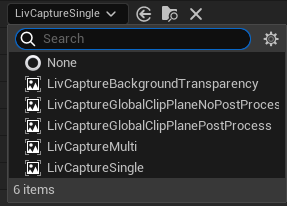
-
Default:
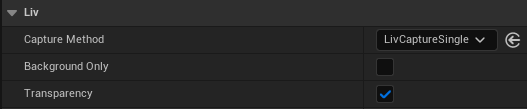
- Background Only: Enable for simpler MR captures.
-
Transparency: Enable to support translucent objects.
-
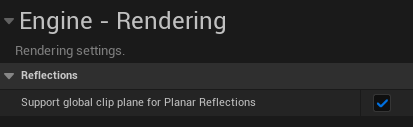
Global Clip Plane: Required for advanced capture methods.
-
Capture Method:
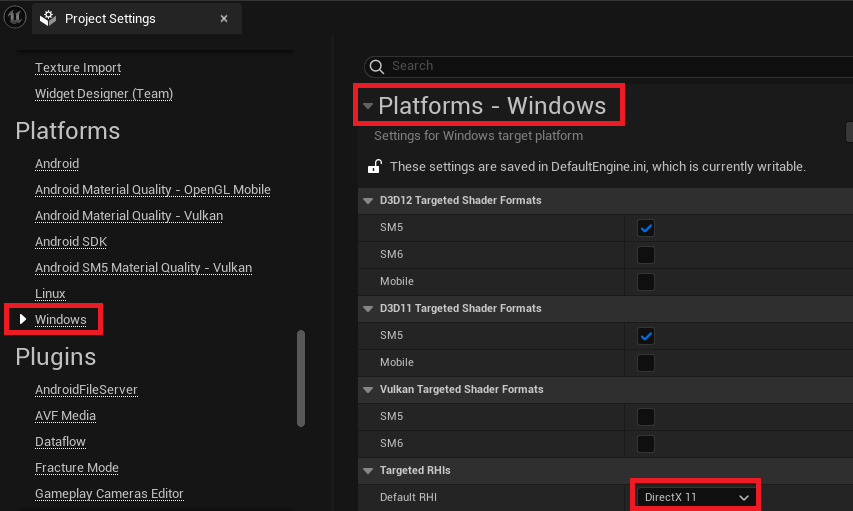
Step 3: Switch to DirectX 11
- Open Edit > Project Settings > Platforms > Windows.
- Set the Default RHI to DirectX 11.
- Restart the editor to apply changes.
Testing the LIV Plugin
Once installed and configured, test the plugin to ensure functionality:Step 1: Package the Project
- In Unreal Editor, go to File > Package Project > Windows.
- Choose a directory for the packaged build.
- Package the project.

Step 2: Validate with the LIV App
- Download and set up the LIV App:
-
Launch the LIV App and ensure it detects the packaged
.exefile.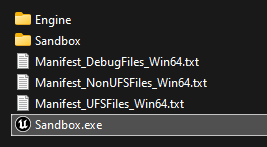
- Test MR output with Mixed Reality Capture Mode.