

Advanced Configuration
Advanced configurations allow you to customize LIV SDK behavior to fit your project’s unique requirements. These configurations optimize capture methods, enable advanced rendering features, and address specific use cases like transparency and global clipping planes.Capture Methods
The LIV SDK offers multiple capture methods to balance performance, transparency support, and post-processing effects. Selecting the correct method depends on the requirements of your project.| Capture Method | Speed | Transparency | Post-Processing | Use Case |
|---|---|---|---|---|
| LivCaptureSingle | Fastest | ❌ | ✅ | Best for performance-critical scenarios where transparency and layering are not required. |
| LivCaptureGlobalClipPlaneNoPostProcess | Moderate | ✅ | ❌ | Use for transparent materials when post-processing effects (ex: bloom) are not needed. |
| LivCaptureGlobalClipPlanePostProcess | Slower | ✅ | ✅ | Use when full transparency and post-processing effects (ex: reflections, bloom) are required. |
| LivCaptureBackgroundTransparency (WIP don’t use) | Moderate | ✅ (Background) | ❌ | Captures only the background layer with transparency. The player remains excluded. |
| LivCaptureMulti (WIP don’t use) | Moderate | ✅ | ✅ | Use for multi-layer captures where both transparency and post-processing are needed. |
- Go to Edit > Project Settings > Plugins > LIV.
- Select the method appropriate to your project requirements:
- Use
LivCaptureSinglefor maximum performance. - Use
LivCaptureGlobalClipPlaneNoPostProcessorLivCaptureGlobalClipPlanePostProcessfor transparency.
- Use
Enable Transparency
Context: Transparency is crucial for rendering translucent objects like glass, holograms, and effects. To display transparency correctly, specific capture methods and material settings must be configured. Steps to Enable Transparency:- Use one of these supported capture methods:
LivCaptureGlobalClipPlaneNoPostProcessLivCaptureGlobalClipPlanePostProcess
- Ensure the material Blend Mode is set to Translucent (see Material Configuration).
- Confirm that Global Clip Plane is enabled.
Global Clip Plane
Context The Global Clip Plane is essential for splitting the MR capture into separate layers (foreground, background, player). Without it, occlusion will fail, and players or objects may render incorrectly above everything else. Steps to Enable Global Clip Plane:- Navigate to Edit > Project Settings > Engine > Rendering > Reflections.
-
Enable Support Global Clip Plane.
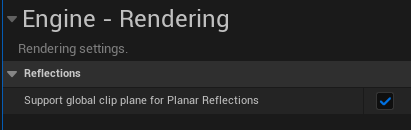
- Restart the editor to apply the settings.
LivCaptureGlobalClipPlaneNoPostProcessLivCaptureGlobalClipPlanePostProcess- Scenes with foreground transparency requiring correct occlusion.
Material Configuration for Additive Transparency
Context: Materials using Additive Blend Mode skip depth testing, causing them to always render in front of other objects. This disrupts occlusion and breaks MR layering in LIV. Steps to Fix Additive Materials:- Open the Material Editor for the problematic object.
- In the Details Panel:
- Change Blend Mode to Translucent.
- Uncheck Disable Depth Test.
- Adjust material properties:
- Use Opacity to control translucency.
- Add Emissive Color for glowing effects without additive blending.
Fixing the Permutation Error Bug on Packaged build
Context The Permutation Error occurs when Unreal Engine fails to load the LIV plugin due to an issue with theEngineVersion field in the LIV.uplugin file. This happens when switching between the stock Unreal Engine and the Meta Fork.
-
Scenario 1: Stock Unreal Engine
If the error occurs in the stock engine, the issue is caused by the presence of the
EngineVersionfield. Fix:-
Navigate to the LIV plugin file:
[YourProjectRoot]/Plugins/LIV/LIV.uplugin -
Open
LIV.upluginin a text editor. -
Remove the EngineVersion line:
"EngineVersion": "X.X.X" - Save the file and restart Unreal Engine.
-
Navigate to the LIV plugin file:
-
Scenario 2: Meta Fork
If the error occurs in the Meta Fork, the issue is caused by the absence of the
EngineVersionfield, or a non-exact matchingEngineVersion. Fix:-
Navigate to the LIV plugin file:
[YourProjectRoot]/Plugins/LIV/LIV.uplugin -
Open
LIV.upluginin a text editor. -
Add the correct EngineVersion line. Replace
"X.X.X"with the exact Meta Fork version you are using."EngineVersion": "5.4.3" - Save the file and restart Unreal Engine. Summary
-
Navigate to the LIV plugin file:
| Engine Type | Issue | Solution |
|---|---|---|
| Stock Engine | EngineVersion field exists. | Remove the "EngineVersion" line in LIV.uplugin. |
| Meta Fork | EngineVersion field is missing. | Add the "EngineVersion": "X.X.X" line with the exact version. |
Meta Features (Optional)
For projects using the Meta Fork and Presence Platform:- Enable Passthrough, Scene API, and Spatial Anchors in Plugins > Meta XR.
- Configure the Scene API to interact with the real-world environment.
- Test Spatial Anchors for persistent object placement across sessions.
Meta XR Integration
The Meta XR Plugin enables advanced features such as Passthrough, Scene API, and Spatial Anchors using the Stock Unreal Engine. Requirements- Meta XR Plugin Version: Minimum 65.0.
- Unreal Engine Version: 5.3.2 or higher.
- Location: The Meta XR Plugin must be placed in the Marketplace (or Fab) directory of the Unreal Engine installation.
- Navigate to your Unreal Engine installation directory:
[UnrealEnginePath]/Engine/Plugins/Marketplace/ - If the Marketplace folder does not exist, create it manually.
- Download the Meta XR Plugin (Version 65.0 or higher) from the Meta Developer Portal.
- Extract the plugin files.
- Place the extracted plugin folder (MetaXR) into the Marketplace directory:
[UnrealEnginePath]/Engine/Plugins/Marketplace/MetaXR/
- Open Unreal Engine.
- Go to Edit > Plugins.
- Search for Meta XR and enable the following plugins:
- MetaXR: For advanced Presence Platform features.
- OculusXR: Core integration for Meta VR devices.
- Restart the Unreal Editor to apply the changes.
- Open Edit > Project Settings > Meta XR.
-
Enable the features you need:
- Passthrough: Allows real-world visuals to blend with MR content.
.png?fit=max&auto=format&n=U3Ku3hHnC3Fz2QjB&q=85&s=ab8df527fc81d16043d5228f4cde7f4a)
- Scene API: Detects and interacts with real-world geometry.
.png?fit=max&auto=format&n=rOjkTDQ_qIFlf8D7&q=85&s=19624a94953526ae7c53c2c3d46751de)
- Spatial Anchors: Supports persistent placement of virtual objects.
.png?fit=max&auto=format&n=rCtn5vMmaHe_RvRp&q=85&s=ac4e105685b9558575830f92f4934998)
| Issue | Cause | Solution |
|---|---|---|
| Meta XR Plugin Not Detected / Oculus XR missing | Plugin not placed in the correct directory. | Ensure it is located in [UnrealEnginePath]/Engine/Plugins/Marketplace/MetaXR. |
| Passthrough Not Working | Plugin not enabled or VR headset compatibility issue. | Enable Meta XR features in Project Settings > Meta XR. |
FAQ and Tips
This section addresses common issues and provides practical tips to optimize your LIV SDK experience.Common Issues and Solutions
| Issue | Cause | Solution |
|---|---|---|
| LIV Plugin Not Detected | Plugin folder is misplaced or not enabled. | Ensure the plugin is in the correct Plugins folder and is enabled in the Unreal Editor. |
| Transparency Not Working | Incorrect capture method or material settings. | Use LivCaptureGlobalClipPlaneNoPostProcess or PostProcess and set material to Translucent. |
| DirectX 12 Errors | DirectX 12 is not supported. | Switch to DirectX 11 in Project Settings > Platforms > Windows > Default RHI. |
| Player Renders Above Everything | Global Clip Plane is disabled. | Enable Support Global Clip Plane in Project Settings > Rendering > Reflections. |
| Additive Materials Always on Top | Additive blend mode skips depth testing. | Open the Material Editor, switch Blend Mode to Translucent, and uncheck Disable Depth Test. |
| Performance Drops in MR Output | High rendering load (translucent materials, effects). | Optimize materials, reduce translucency usage, and monitor performance with Stat Unit. |
| Meta Fork Features Not Working | Incorrect Meta Fork setup or build process. | Ensure the Meta Fork is downloaded, built correctly, and configured in Unreal Engine. |
Tips for a Smooth Workflow
Switch to DirectX 11- The LIV SDK does not support DirectX 12.
- Go to Edit > Project Settings > Platforms > Windows and set Default RHI to DirectX 11.
- Minimize the use of translucent materials.
- Avoid overloading the scene with dynamic lighting and complex shaders.
- Use Stat Unit and Stat FPS commands to monitor performance.
-
Run your packaged build with the
logflag to view detailed logs:"[GamePath]\MyGame.exe" -log
- Use Development or Shipping configuration when packaging.
- Ensure the build is targeted for Windows 64-bit.
- Always test your project on the VR hardware it is intended for to identify any compatibility or performance issues early.
- Run builds with the
logflag to identify and resolve rendering errors.
Advanced Troubleshooting
Performance Bug (UE-86191) Unreal Engine may exhibit a performance bug when using MR capture with certain configurations. To fix this:-
Open the
DefaultEngine.inifile in your project directory. -
Add the following lines:
[/Script/Engine.RendererSettings] r.SceneRenderTargetResizeMethod=2 r.SceneRenderTargetResizeMethodForceOverride=True
-
If packaging fails in the editor, use the command line:
& "[UnrealEnginePath]\Engine\Build\BatchFiles\RunUAT.bat" BuildCookRun -project="[PathToUProject]" -platform=Win64 -clientconfig=Development -serverconfig=Development -cook -build -stage -pak -archive -archivedirectory="[OutputFolder]"