

Module: LCKWwise | Version: 0.9.2 | Platforms: Win64, Android
Overview
LCKWwise provides integration with Audiokinetic Wwise, capturing game audio output for recording. This plugin hooks into the Wwise audio system to capture the final mixed output.Supported Channels
| Channel | Supported | Description |
|---|---|---|
Game | Yes | Wwise master bus output |
Microphone | No | Use LCKUnrealAudio or LCKOboe |
VoiceChat | No | Use LCKVivox |
Requirements
- Wwise plugin for Unreal Engine
- Wwise project configured in your game
- Valid Wwise license
Dependencies
Automatic Integration
The plugin automatically:- Detects Wwise plugin presence
- Registers output capture callback
- Registers with the LCK audio system
Capture Point
LCKWwise captures audio from the Wwise output stage after all processing:Technical Details
Capture Callback Registration
The plugin registers a capture callback with the Wwise sound engine:Ambisonic Support
The plugin supports 3rd-order ambisonic (16-channel) to stereo conversion:| Audio Format | Channels | Handling |
|---|---|---|
| Stereo | 2 | Direct passthrough |
| 3rd Order Ambisonic | 16 | Decoded to stereo |
Ambisonic decoding is limited to 3rd-order (16 channels). Higher-order ambisonics are not supported.
Configuration
Sample Rate and Channel Configuration
We recommend setting Sample Rate to 48000 and Channel Config Type to Standard (rather than Anonymous or Ambisonic).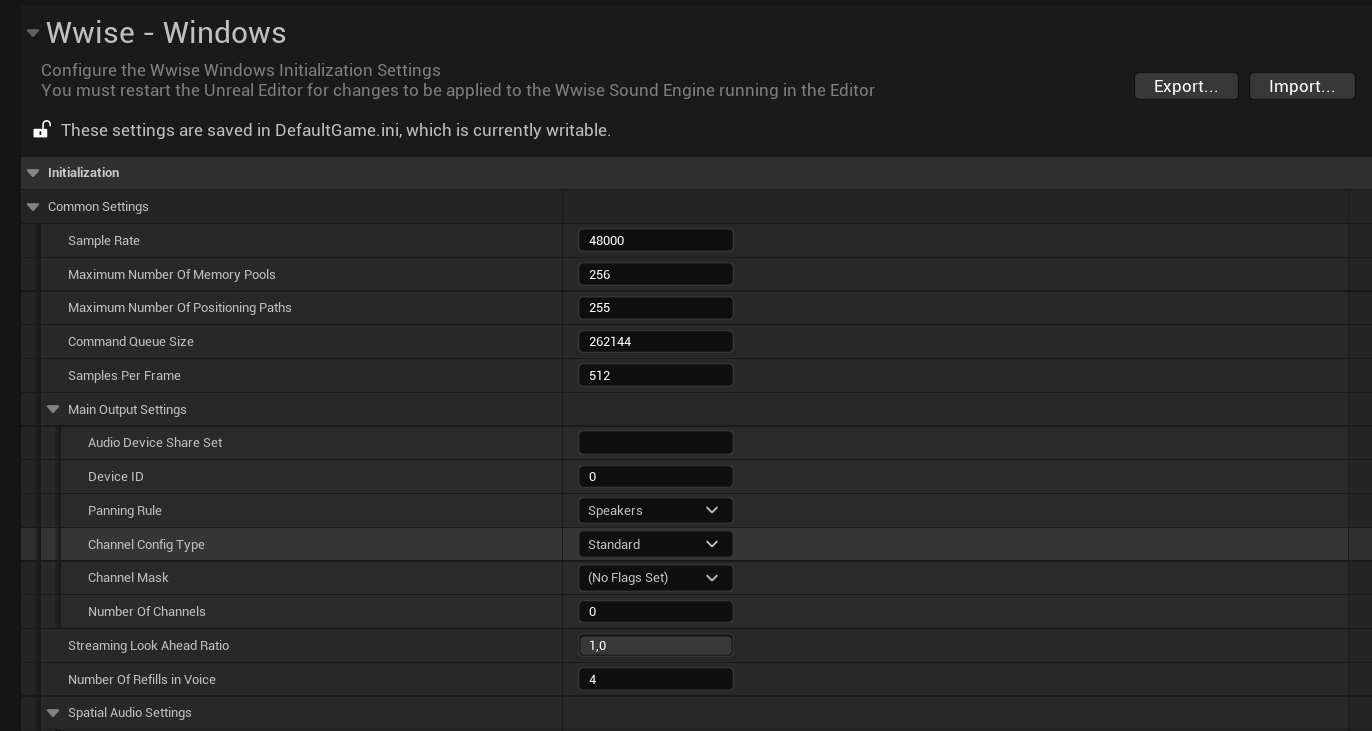
Channel Settings
Setting Channels to 2 sometimes resolves audio issues. These settings need to be configured separately for Android and Windows, depending on your target platforms.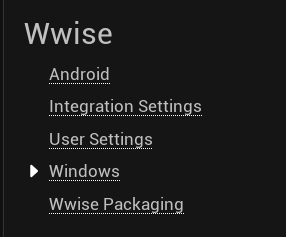
Output Device Configuration
Ensure your Wwise project outputs to the appropriate device:- In Wwise Authoring, configure the Audio Device Shareset
- Set output to match your game’s audio output
- Verify in Wwise Profiler that audio is flowing
Platform Support
| Platform | Status | Notes |
|---|---|---|
| Win64 | Full support | Tested with Wwise 2021.1+ |
| Android | Full support | Tested on Quest 2/3 |
| Linux | Not supported | Wwise Linux support limited |
Performance
| Metric | Impact |
|---|---|
| CPU | < 1% overhead |
| Memory | ~2MB buffer |
| Latency | < 1 frame |
Wwise Version Compatibility
| Wwise Version | Status |
|---|---|
| 2023.1.x | Supported |
| 2022.1.x | Supported |
| 2021.1.x | Supported |
Troubleshooting
No audio captured
No audio captured
- Verify Wwise plugin is enabled and initialized
- Check Wwise Profiler for audio output
- Verify output callback is registered (check LogLCKWwise)
- Ensure audio device is properly configured
Plugin not loading
Plugin not loading
- Verify AkAudio module is available
- Check plugin load order in .uproject
- Look for Wwise initialization errors
Sample rate mismatch
Sample rate mismatch
- Check Wwise project sample rate settings
- Verify encoder sample rate matches
- Consider resampling if rates differ