

Setup
Make sure you’ve already setup the Unity SDK before following these steps:-
Navigate to
LIVSDKSettings(Usually located atAssets/LIV/Resources/LIVSDKSettings) and click the “Switch To Universal Render Pipeline” button.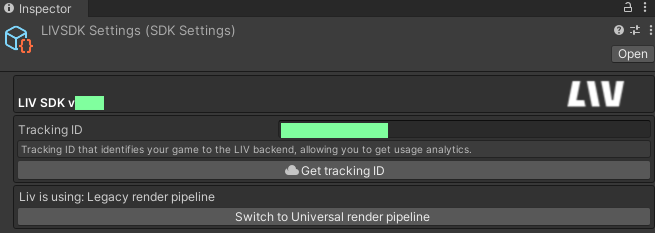
-
Find
File/Build Settings/Player Settings/Other Settings/Scripting Define Symbolsand add LIV_UNIVERSAL_RENDER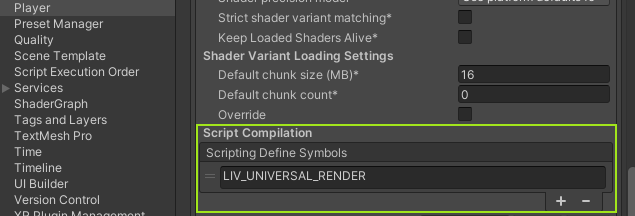
Unity 6
Unity 6000.0 introduced a new system calledRenderGraph.
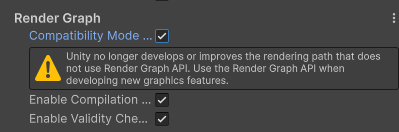
The current version of the LIV SDK still depends on Scriptable Render Passes and will require you to enable Compatibility Mode when using the Universal Render Pipeline.
You can do so in Project Settings > Graphics, scroll all the way down and enable Compatibility mode.
Versions Below 2.0
Additionally, for Versions1.5.1, 1.5.2, 1.5.3 follow the following steps:
- Find your Forward Renderer Asset(s) in the Unity project. (Note: There can be multiple renderer assets in your project. Make sure you’re doing this for all of the renderer assets that will be used with LIV)
- Under Renderer Features, add “SDK Universal Render Feature”.
- On your LIV component enable “Fix Post-Effects alpha channel”.