

Intro
Meta Presence Platform features for Mixed Reality are supported on the Unity LIV SDK from version 2.0+. Please note that this functionality is currently in beta, and development around issues and features will updated regularly, for more info on specific updates check the changelogs.Constraints and Limitations
- Realtime composition is not yet supported. Post-production work will need to be done for background removal of the live camera subject
- The app must be run on PCVR with the Presence Platform features working
- Presence Platform requires Oculus set as the active OpenXR Runtime
- LIV App uses overlays so SteamVR must be running
- Tracked cameras only works with SteamVR
- **When using both SteamVR and Oculus at the same time, the spaces need to be synced via **OpenVR Space Calibrator
- Quest Scene data must be set prior to connecting to SteamVR. If changes to the Scene are made, you must reconnect to SteamVR
- DirectX11 is currently supported. DirectX12 and Vulkan are not supported at this time.
Video Tutorial
Watch our tutorial for a step-by-step walkthrough for integrating the Meta Presence Platform.Sample Project
A sample project is available on GitHub with the supported Presence Platform capabilities if you’d like to follow along. The Meta XR All-in-One SDK (UPM) v65.0 and later is compatible with LIV’s Presence Platform. Earlier Meta SDKs may work but if any issue is encountered, please try upgrading the Meta SDK or reach out to us at [email protected].Meta Present Platform Passthrough
Passthrough enables a player to see their real world environment while wearing the Quest headset. From a 3rd person capture perspective, the camera will see the player in their real world environment as well as the in-app experience.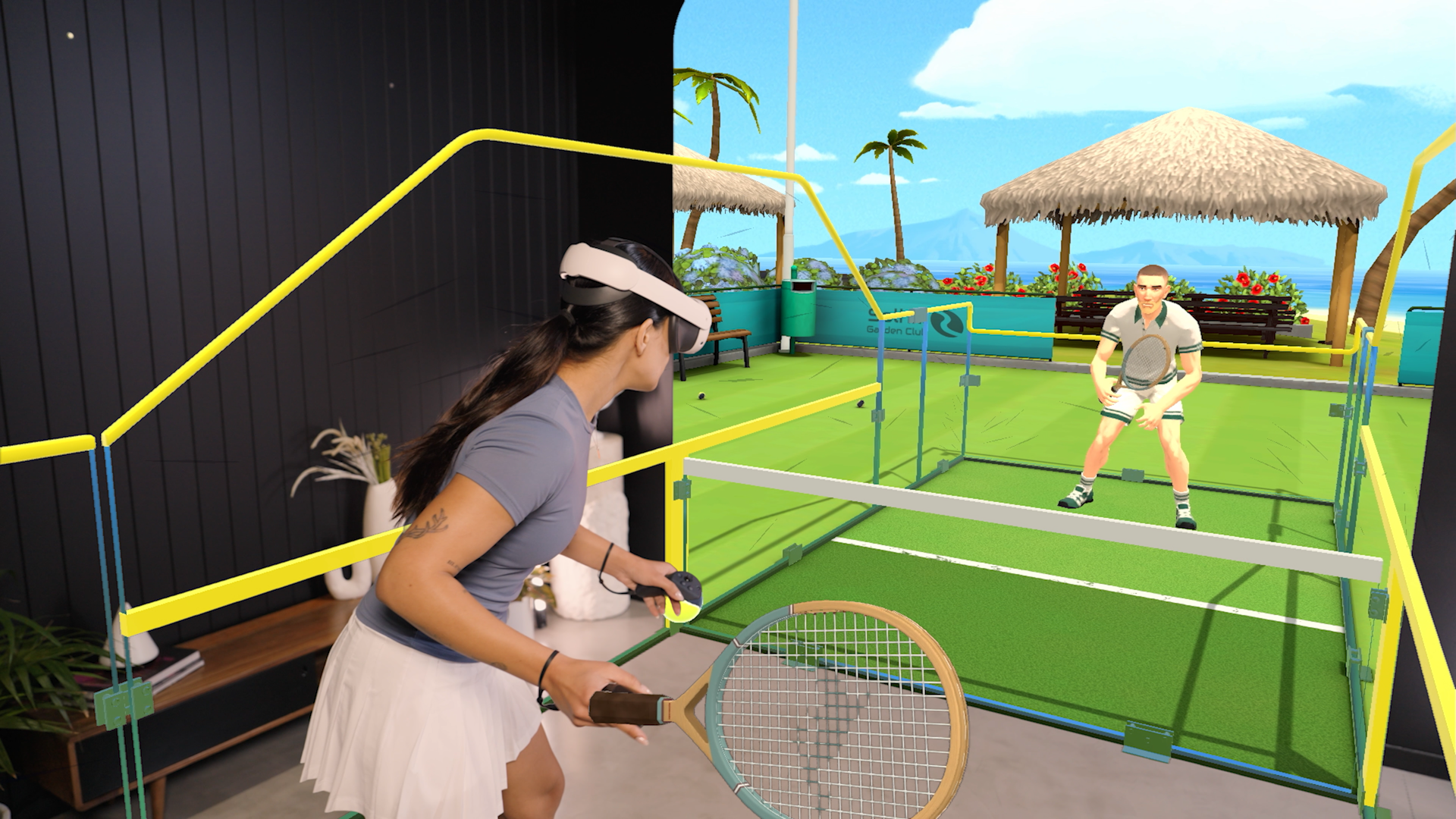
Setup
- First set up the LIV SDK in your project, if you haven’t already. Click here for our quickstart guide. These next steps are specific to Meta Presence Platform integration.
-
Hide objects that you don’t want to show in Mixed Reality mode.
In the Mixed Reality mode, you may not want certain objects to be rendered (such as sky boxes, skydomes, background meshes etc) and instead have your real world live environment, such as your actual living room, show through.
In the Layer management UI, create a layer for these objects you want to hide. Now tag the individual objects to it. You can also do this in script if you want.
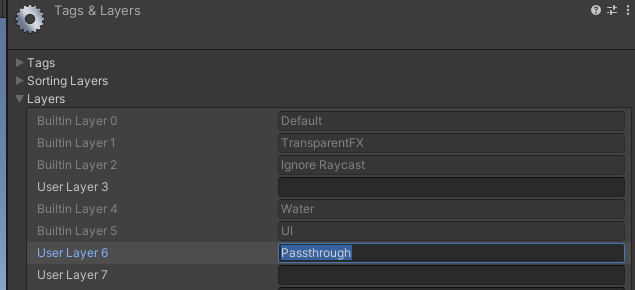
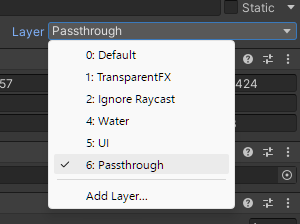
In the LIV component in the scene you can uncheck the Passthrough layer, so objects tagged with that layer are now hidden from the LIV render passes. The callbacksonPassthroughActivatedandonPassthroughDeactivedare also available for further customisation when Passthrough mode is toggled via the LIV App.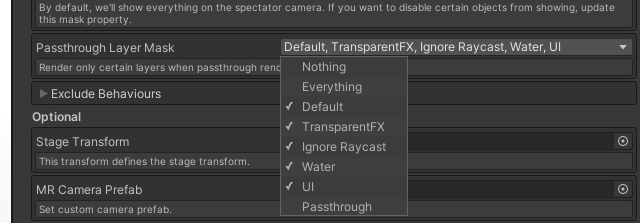
-
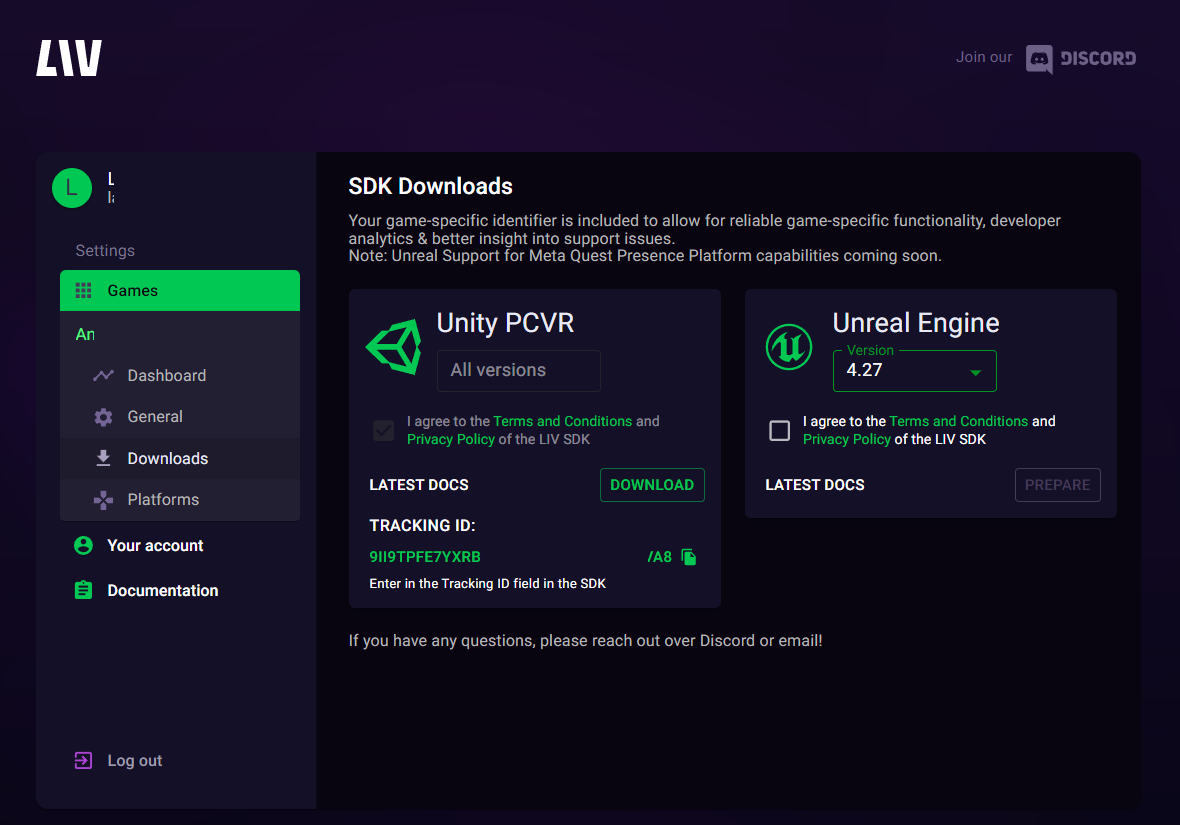
Update tracking ID: Obtain tracking ID using developer portal
LIVSDKSettings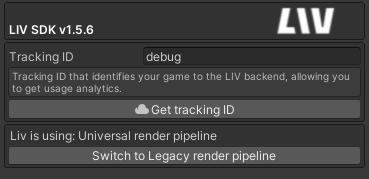
SDKStructs.cs/public const string SDK_ID = "YOUR_TRACKING_IDENTIFIER";