

Download LCK from the Developer Dashboard
- Go to the LIV Developer Dashboard.
- Create your organization.
- Create your game.
- Agree to the LCK License Agreement, Privacy Policy, and binding agreement to generate your app-specific SDK.
- Download the SDK package and save the Tracking ID provided.
Each game requires its own SDK. If you create a new game entry, you will need to download a new SDK.
Plugin Installation
From Source
1
Unzip the LCKGame project
-
Unzip the LCKGame project

2
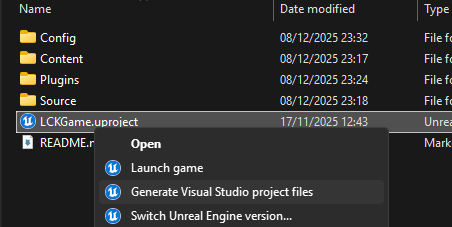
Generate Visual Studio project files
- Generate Visual Studio project files
3
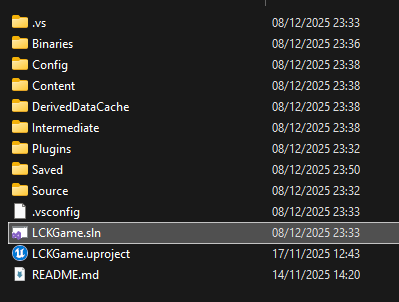
Open the .sln and build
-
Open the .sln generated and build the project.
4
Locate Plugins
You can find the LCK plugins inside the
/Plugins folder:Core:- LCK (required)
- LCKUI
- LCKTablet
- LCKUnrealAudio
- LCKOboe (Android microphone)
- LCKFMOD (requires FMODStudio)
- LCKWwise (requires Wwise)
- LCKVivox (requires VivoxCore)
Required Plugins
LCK
Required - Core recording functionality including encoding and capture
LCKAudio
Required - Audio source interface and mixing
Optional Plugins
UI & Interface
UI & Interface
- LCKUI - 3D UI component library
- LCKTablet - Complete virtual tablet interface
Audio Sources
Audio Sources
- LCKUnrealAudio - Unreal Engine native audio
- LCKOboe - Android low-latency microphone
Audio Middleware (External Dependencies)
Audio Middleware (External Dependencies)
These plugins require you to download and install third-party plugins:
- LCKFMOD - FMOD Studio integration (requires FMODStudio plugin)
- LCKWwise - Audiokinetic Wwise integration (requires Wwise plugin)
- LCKVivox - Vivox voice chat capture (requires VivoxCore plugin)
Enabling Audio Middleware Plugins
1
Download the required plugin
- FMOD: Download FMODStudio plugin for Unreal Engine
- Wwise: Download Wwise plugin for Unreal Engine
- Vivox: Download VivoxCore plugin for Unreal Engine
2
Install the plugin
Copy the downloaded plugin to your project’s
Plugins/ folder.3
Enable in LCKGame.uproject
Edit For Wwise:For Vivox:
LCKGame.uproject and set the plugins to "Enabled": true:For FMOD:Module Dependencies
Add the required modules to your.Build.cs file:
Platform Configuration
- Windows
- Android
- Linux
Windows Setup
No additional configuration required. The SDK uses Windows Media Foundation for encoding.Requirements:- Windows 10 or later
- DirectX 11 compatible GPU
- AVCodecsCore plugin enabled
Project Settings
Navigate to Project Settings > Plugins > LCK SDK:Quality Profile Settings
Each profile contains:Verification
After installation, verify the SDK is working:Troubleshooting
Plugin not found
Plugin not found
- Verify plugin is in the correct
Plugins/directory - Regenerate project files (right-click .uproject > Generate Project Files)
- Check Output Log for loading errors
Module not found in Build.cs
Module not found in Build.cs
- Ensure the plugin is enabled in
.uprojectfile - Verify module name spelling matches exactly
- Check for circular dependencies
Android build fails
Android build fails
- Verify Vulkan is enabled
- Check NDK version compatibility
- Ensure permissions are added to manifest