

LCK UI components are fully customizable to match your game’s art style and feel.
Overview
The LCK UI system supports customization of:- Materials - Button colors, textures, and visual effects
- Sounds - Button press/release audio feedback
- Haptics - Controller vibration feedback
Material Customization
Button Materials
LCK buttons use material instances for visual states:Customizing Materials
1
Locate Default Materials
Find the default materials in:
2
Create Material Instances
Create new Material Instances based on
M_LCKButton_Base:- Right-click
M_LCKButton_Base - Select Create Material Instance
- Name it (e.g.,
MI_MyGame_Button)
3
Customize Parameters
Adjust material parameters:
4
Apply to Components
Assign your custom material to LCK button components:
Emission & Lighting
Depending on how you use real-time lighting in your game you might want to tweak emission strength on the UI materials.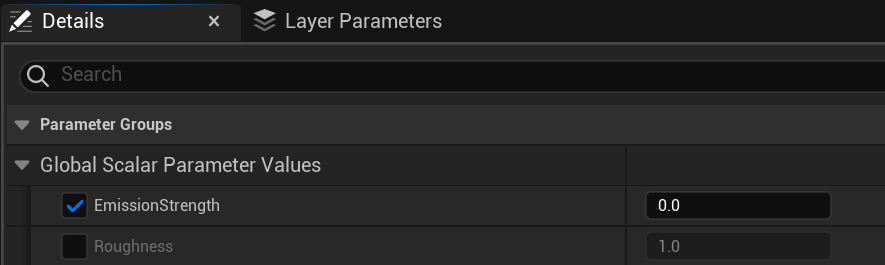
UI Texture Assets
UI visuals are defined by the UITexture asset. Update it to change the UI look. Update LCKTabletTexture asset to change how the tablet looks.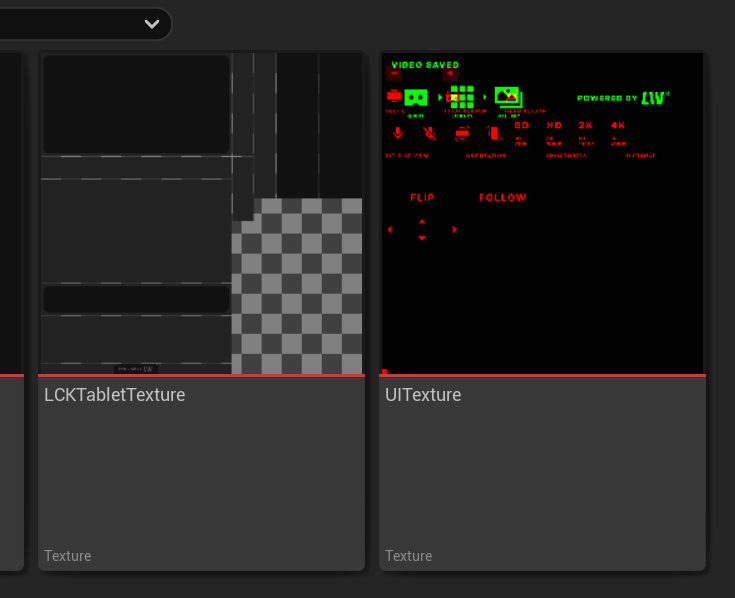
Material Parameter Updates
LCK automatically updates material parameters based on state:Sound Feedback
TabletDataModel has a broadcast for a UI element being pressed. You can subscribe your own implementation to it.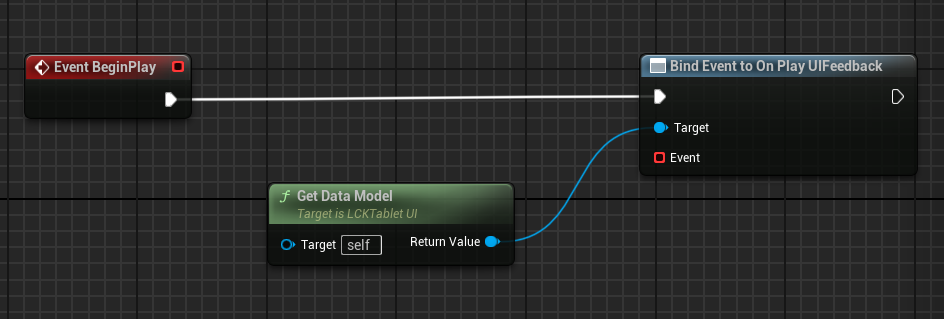
Configuring Button Sounds
LCK buttons can play sounds on interaction:Setting Up Sounds
- Blueprint
- C++
- Select the LCK button component
- In Details panel, find Audio section
- Assign your sound assets to:
- Press Sound
- Release Sound
- Hover Sound
Sound Volume
Adjust UI sound volume relative to game audio:Haptic Feedback
Controller Vibration
LCK supports haptic feedback for VR controllers:Configuring Haptics
Platform-Specific Haptics
- Quest
- SteamVR
Quest controllers support:
- Amplitude modulation
- Frequency control
- Duration timing
Widget Styling
Text Customization
Icon Customization
Replace button icons with your own:Theme Presets
Create reusable theme configurations:Best Practices
Match Your Game's Style
Match Your Game's Style
Customize the tablet to feel native to your game world:
- Use your game’s color palette
- Match button styles to existing UI
- Consider environmental theming (sci-fi, fantasy, etc.)
Keep Feedback Consistent
Keep Feedback Consistent
Ensure feedback is consistent across all LCK interactions:
- Same sound volume for all buttons
- Similar haptic intensity
- Consistent visual transitions
Test on Device
Test on Device
Always test customizations on actual VR hardware:
- Verify materials look correct in VR
- Test haptic intensity
- Confirm sound spatialization
Accessibility
Accessibility
Consider accessibility when customizing:
- High contrast color options
- Adjustable haptic intensity
- Optional sound feedback toggle
See Also
Buttons
Button component reference
State Management
Recording state visualization